API Keys
You can use our application's built-in web kiosk to process your payments or our paylinks to create pages sendable to your customer for their own checkout flow.
For more custom purposes, we also offer API functions that will allow you to accept payments using a set of our API documented here. In order to use them, you should first have an account, create a merchant account, and then finally, create an API Key.
How to Create API Keys
- Log in to your account at NGnair.
- On dashboard, go to Admin, then select Integrations.
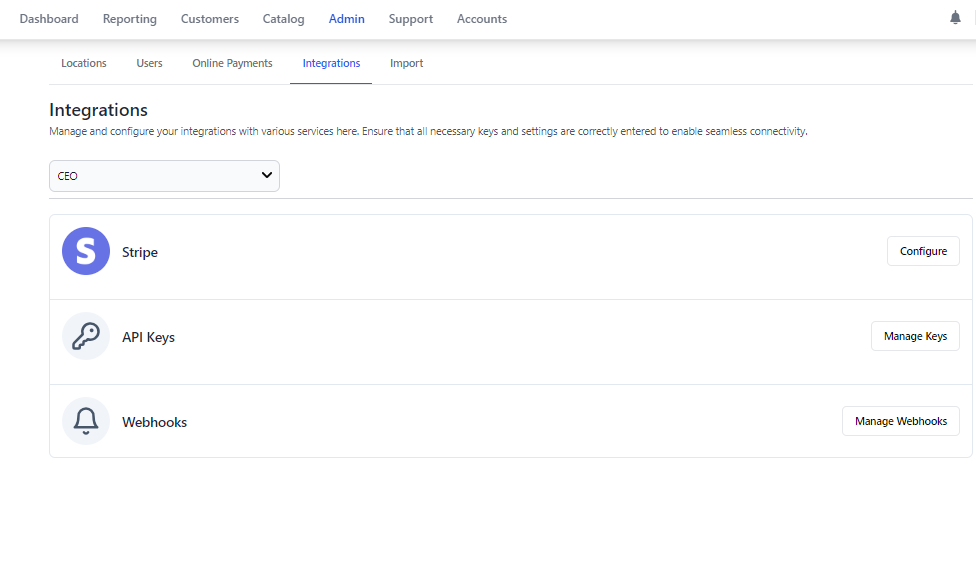
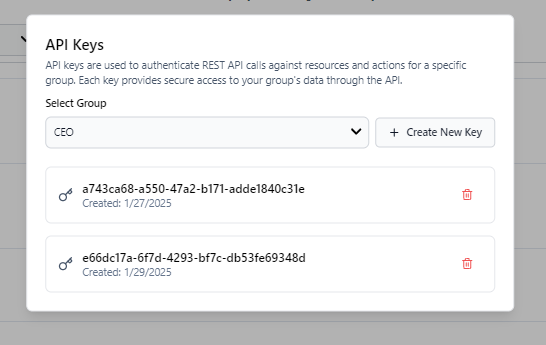
- Click on Manage Keys. A modal will appear.
- Select the group you want to create the key for. And then click on Create New Key.
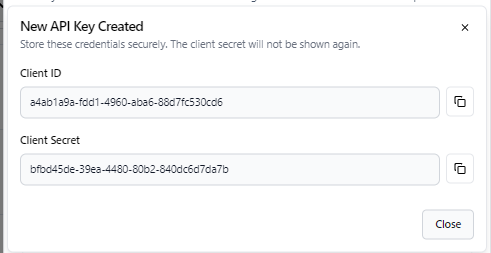
- A New Key will be generated. A set of public and private keys. Save these keys in a secure location as the private key will not be shown again in our website.
How to Use API Keys
Depending on the api call, we follow this common format:
curl -X 'POST' \
  'https://demo-be.ngnair.com/api/gateway/createCheckoutData' \
  -H 'accept: application/json' \
  -H 'Content-Type: application/json' \
  -d '
  {
    "groupID": "<group_id>",
    "token": "<sample_public_or_privatetoken>",
    "data": {<payload>}
  }'
Extra Notes
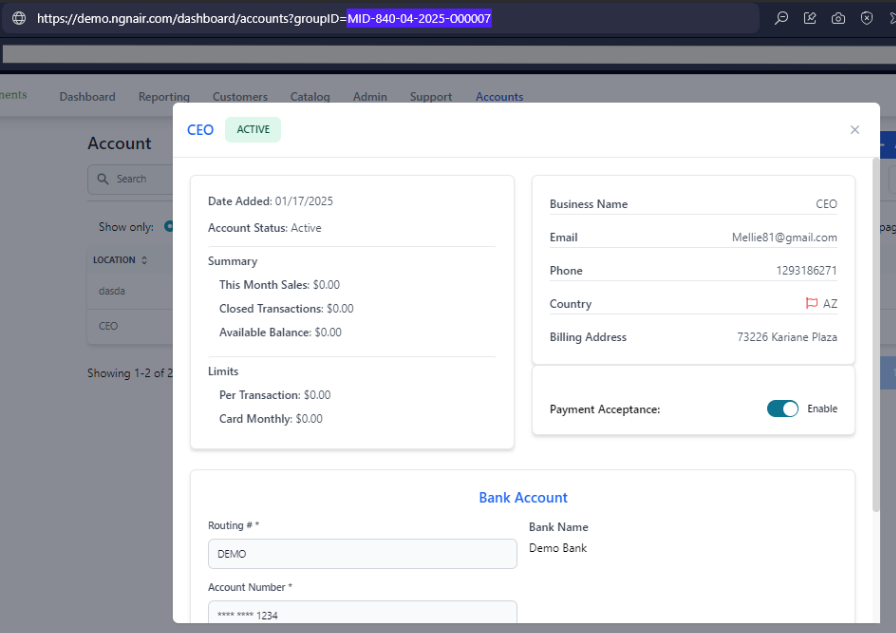
- Where can I see the groupID again? GroupID can be seen on the API Key Modal List. You can also find the id by going to the Accounts tab in the dashboard. And on the list of accounts, click your selected group and you will see the group id in the url.